ARTICLES
Recover your deleted files with foremost
By Valentin Bremond
What do you mean “recover deleted files”?
You’re going to say: “dude! If I deleted some files, they’re gone!”.
Well yeah. But no.
Actually, when you delete a file on a storage device (USB key, hard disk, SSD, SD card, … - which we will call “disk” in this article), you don’t really delete the file, you juste delete the reference to the data.
To keep it simple, let’s compare a disk with a book.
It’s all about the summary
Imagine you have a maths book (a big book, with lots of notions and chapters). Let’s say you want to learn about integrals. How do you go and read the chapter about the integrals? You have several ways to do it:
- read each and every page up from the first until you find the one talking about integrals
- you already read that yesterday, you remember where it is, you go there directly
- you open the first page which contains the summary: it tells you which page to go
Everybody agree that the solution 1 is relatively feasible for a very small book but will rapidly become way too long with bigger books (note that it’s not impossible, just very long). Solution 2 obviously only work if you already read the book; solution 3 is therefore the good one. If you want to quickly find some information in a book, you need a summary.
Well, it’s the same with disks: when you install a filesystem on your disk (= you format your disk), it will create a “table of contents” (or index) which will be small, fast to read and will allow locating data on the disk. When you will need to open the picture of your uncle Michel at the beach, this index will allow you to very quiclky know where on the disk to retieve the photo.
What about deletion?
You have multiple files, each having an entry in the index which points to its data:
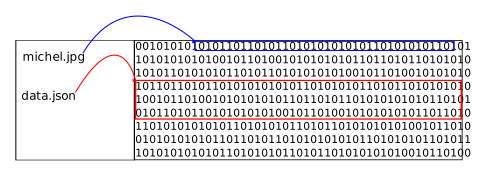
Now, let’s say you delete a file. What happens? Your filesystem deletes the entry from the index. The file does not show up in the index, therefore it does not exist anymore.
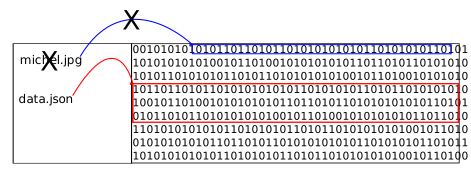
Except that data are still on disk, nothing actually deleted them.
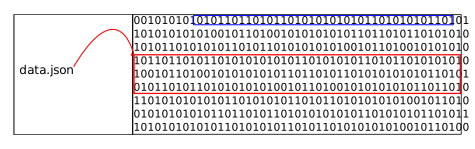
And technically, we don’t need to delete them: if someday we create a new file and this file is saved at the same location as the old one, the disk will simply overwrite the old data.

Clarification for SSD
In the particular case of SSD, you have to actually reset the blocs before you can write in them again - it’s what TRIM
does. If you never “trim” your SSD (discard option for ext3/4 or fstrim -av), when it will write in blocs again,
it will have to set the block back to zero before writing in it, which will lead to a loss of performance.
Anyway, you can see that when you delete a file, it becomes “unfindable” (because it’s out of the index), but you can
still find back the data with a full disk scan.
And that’s exactly what foremost does.
foremost
foremost is a very simple tool which will scan a disk and recognize files from their first bits (every file has special
headers which allow applications to recognize them and open them correctly).
Obviously, this can take some time (or lots for big disks) given that it’s going to read everything, bit after bit, but it has the merit of finding a lot of things.
And it’s simple to use: let’s say your disk is mounted on /dev/sdb1 and you want to recover files in /tmp/recovery:
1$ sudo foremost -i /dev/sdb1 -o /tmp/recoveryYou can also specify the types of files you want to recover with -t (i.e.: -t jpg,gif).
Note: you can end up with half images. For example, if the end of a JPG file has been overwritten with data from another, more recent file, you will only have the beginning of the file (in general, the top part of the image).
Whatever, but how do I really delete my data?
To be always sure to completely delete your data, the simpler is to rewrite your file with random data and then delete it, which will make foremost find nothing but a soup of bits.
For example you can use shred on a disk mounted on /dev/sdb1:
1$ shred /dev/sdb1You can specify the amount of times shred will overwrite the file with random data with -n (3 by default) and you can
ask to end with a layer of zeroes with -z (if you want to hide this obfuscation). You can also specify a file and add
-u to make it delete the file at the end.
Note on passes
You must wonder why does shred makes multiple passes on a file, and not just one?
Disks are not perfect devices which store data perfectly. Old data can still be visible despite the new ones. For
example, a hard disk stores data as magnetic dipoles (note the s: it’s not a dipole per bit but several dipoles per
bit). A majority of dipoles oriented in the same direction gives the value of a bit. A minority can then indicate the old
value and just one pass can not be enough to really delete the value (note that we are talking about very special and
dedicated equipment, no need to start being crazy ; your 12 years old neighbour which “hacks” Wifi networks and Facebook
accounts won’t do anything with your disk if you wiped it with shred, even with a single pass).
Additional precision for flash storage (SSD for example): they use mechanisms to level the wear. Contrary to a hard disk,
the OS can’t know where data will be written. Randomizing a file with shred will actually write random data in another
location of the disk to limit the wear at the file location (the disk handles that by itself). A TrueCrypt article
explains well all this: http://andryou.com/truecrypt_orig/docs/wear-leveling/. To prevent this issue, the safest way is
to completely encrypt your disk, with LUKS for example (in French).
Anyway, you should always encrypt your disk.